
وضاحت
Zoe Booking turns your WordPress site into a complete booking system in about five minutes. Add services and staff, drop the form on any page, and start taking appointments — free reservations, hosted online payments or the WooCommerce checkout.
Three ways to take bookings
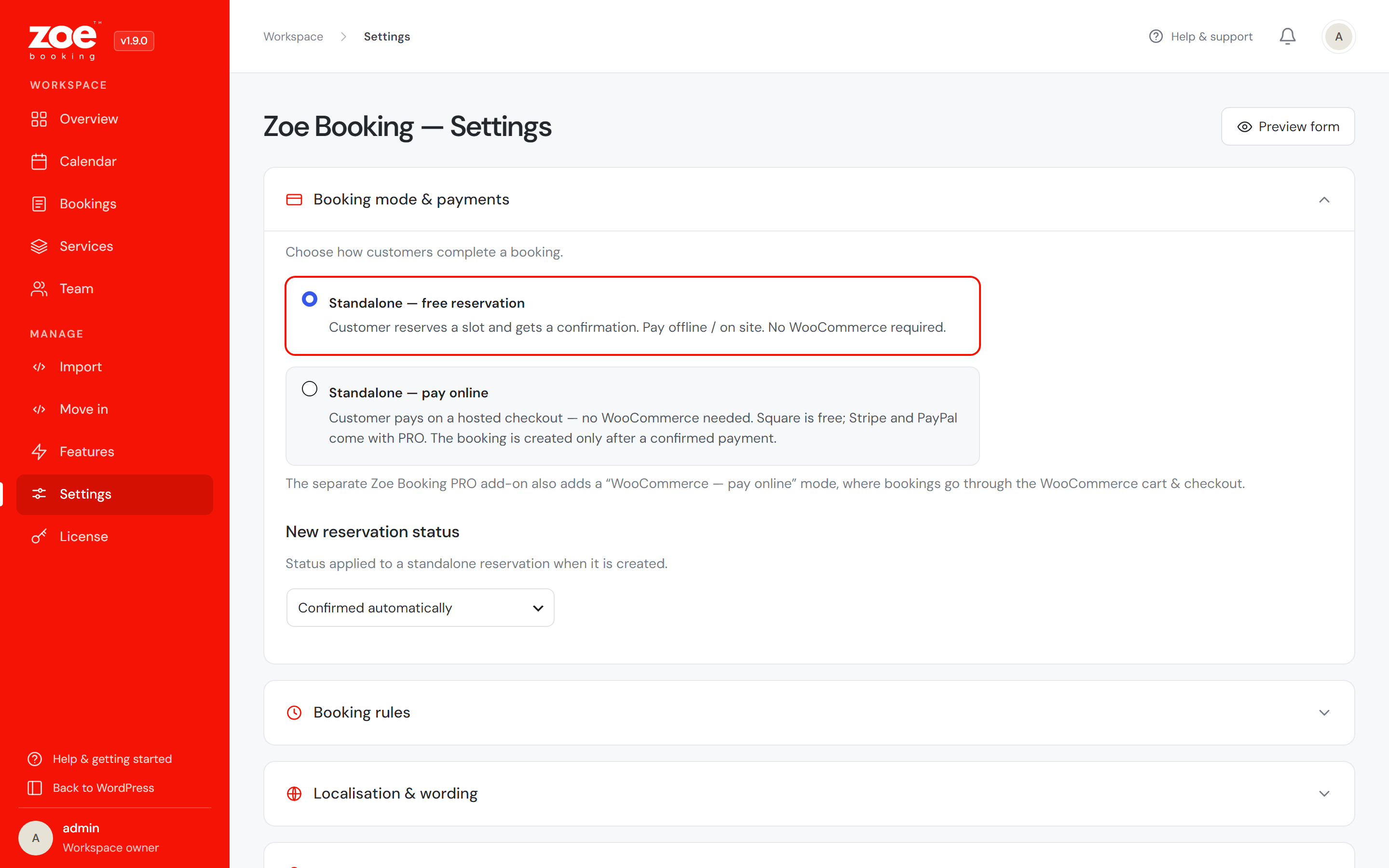
- Standalone — instant reservations (confirmed automatically or pending your approval). No other plugin needed.
- Standalone — pay online — customers pay on a hosted checkout (Square built in; Stripe and PayPal come with the PRO add-on). The booking is created only after the payment is verified server-side; if the slot was taken while paying, the charge is refunded automatically.
- WooCommerce (PRO add-on) — bookings ride through the cart and checkout as products, with prefilled customer details.
A booking form people enjoy using
- Four friendly steps: service date & time details confirm, with a live price summary.
- Five layouts (sidebar with photo, numbered process timeline, top stepper, slim progress bar, icon rail) and five design skins (Classic, Minimal outline, Soft, Dark, Glass).
- Every colour, corner radius, spacing and font control is free and fully editable — nothing about styling the form is locked.
- Design presets (PRO add-on) — nine finished looks (Zoe Classic, Nordic, Midnight, Blush, Atelier, Clinic, Terracotta, Mono, Botanical) applied in one click, plus saving your own and carrying it to another site.
- Popup mode — show just a button, the form opens in an elegant modal.
- Calendar days fill up visually as they get booked; time slots show remaining group spots.
- An “Earliest available” button jumps to the first free slot, however far ahead it is.
- A decoy field and a per-visitor hourly cap keep automated submissions out of the calendar without a CAPTCHA or a third-party service.
- Phone field with a country dial-code picker — optional, required or hidden — validated email, optional customer notes.
- Dedicated Elementor widget — layout, design skin, colours, typography, spacing and the sidebar photo are all editable straight in the Elementor panel. A Gutenberg block and the
[ms_booking]shortcode render the same form everywhere else. - A service catalogue with
[ms_services]or its own Elementor widget: your services as cards (photo, description, duration, price) in list, grid or large-card layouts, with optional category filters, search and sorting — and a Book button that opens the form on that service. - 12 or 24-hour time, any currency symbol and position, renameable terminology (Service Class, Person Coach…), single-person mode.
Run the business, not the admin
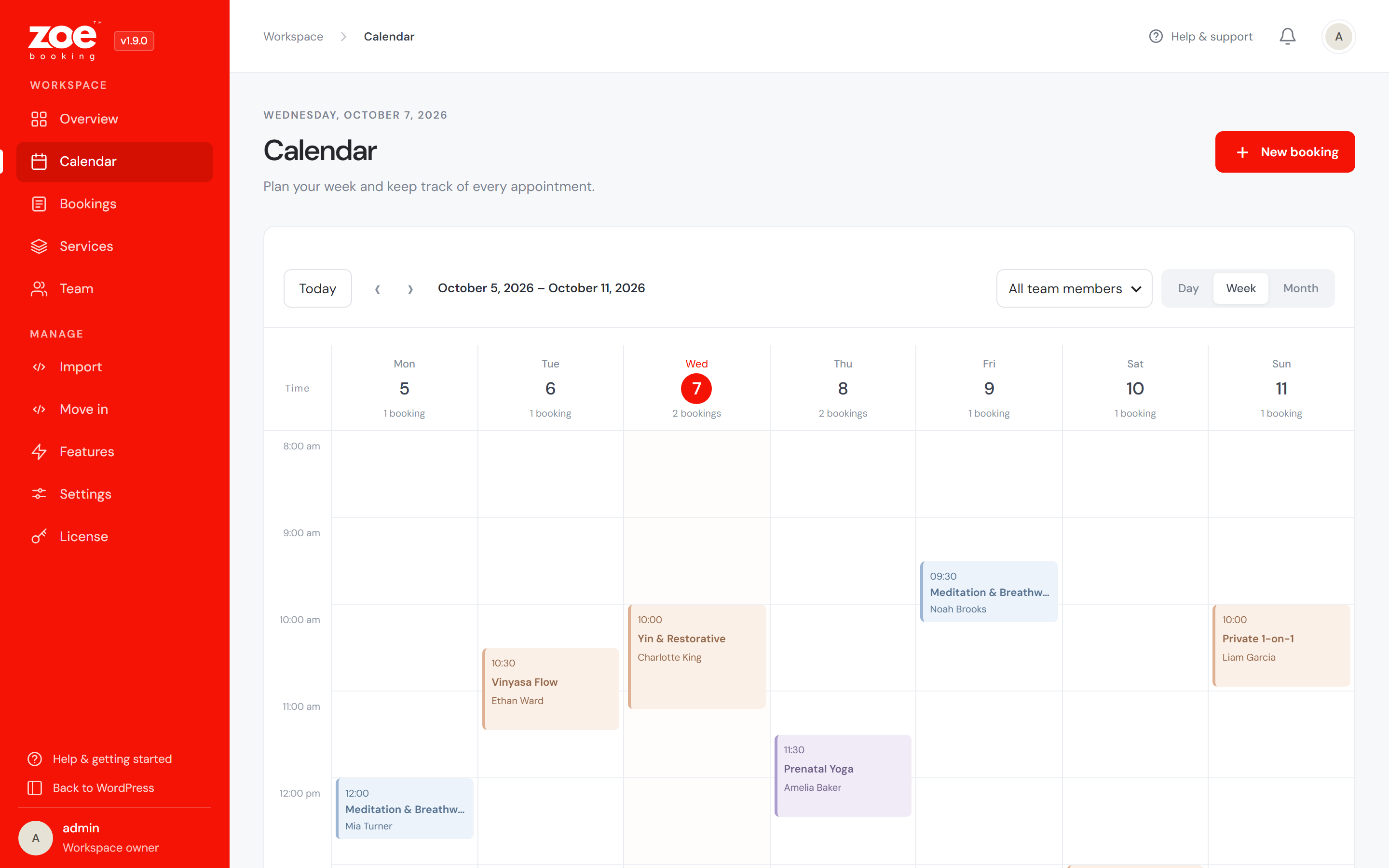
- A week calendar with an hour axis and colour-coded appointments (day and month views too), staff and service filters, and a two-step panel for adding a booking by hand.
- Move an appointment straight from the day panel — pick a new date, pick from the free times. The booking keeps everything (id, customer, price, payment) and the customer gets a calendar invite for the new time — even at short notice.
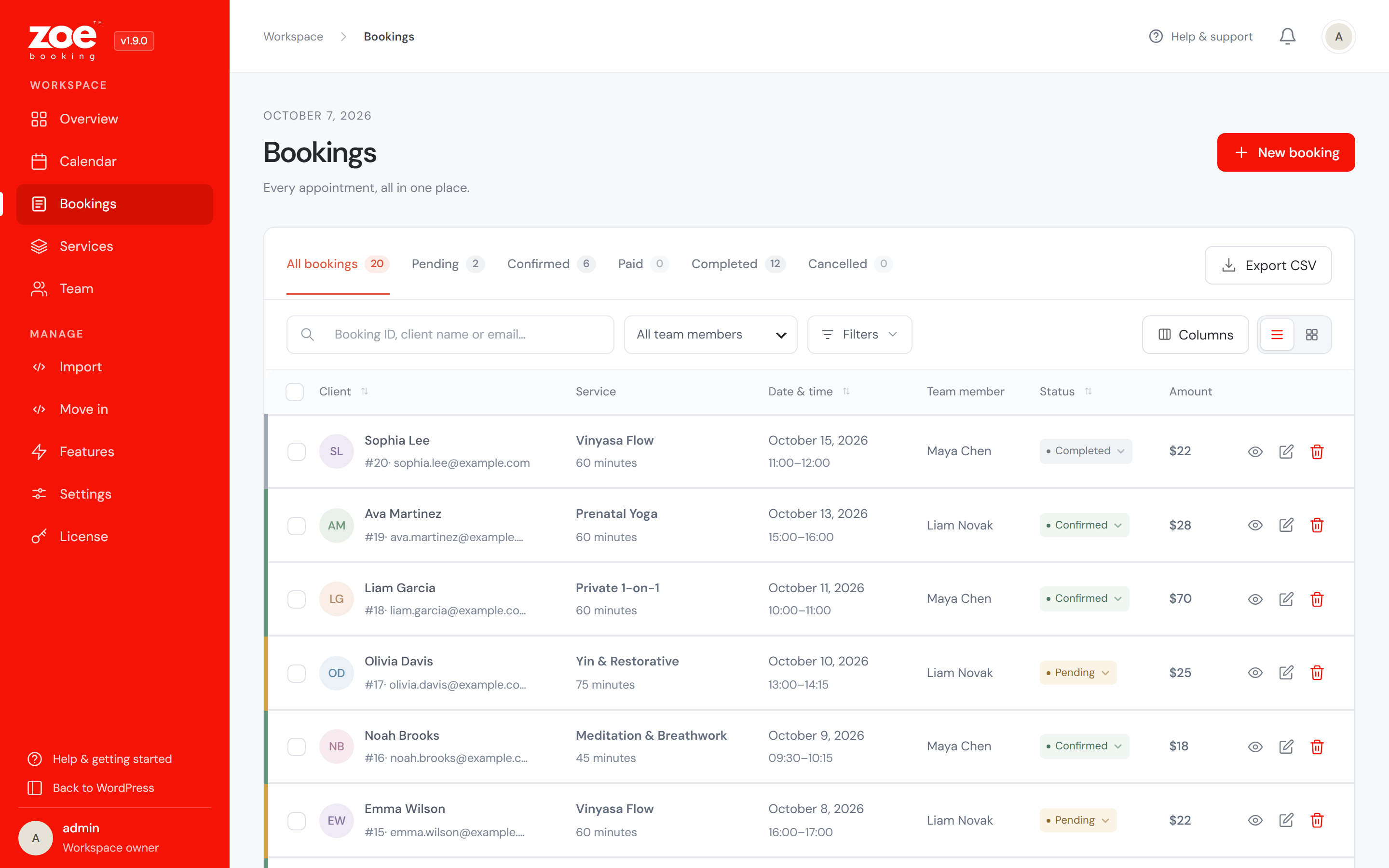
- A bookings list with status tabs and counts, removable filter chips, bulk actions and a Table / Cards switch — every booking opens in a side panel with a print-ready details sheet, and the CSV export takes whatever your filters select.
- Private notes on any booking — what you need to remember about a customer, never shown to them.
- CSV import to bring an existing calendar (and its customers) over from a spreadsheet or another plugin, with a dry run before anything is written and no emails sent to anyone.
- Optional conversion tracking: a completed booking is announced to your own analytics — GA4, Google Tag Manager or Meta Pixel — without Zoe loading a single third-party script.
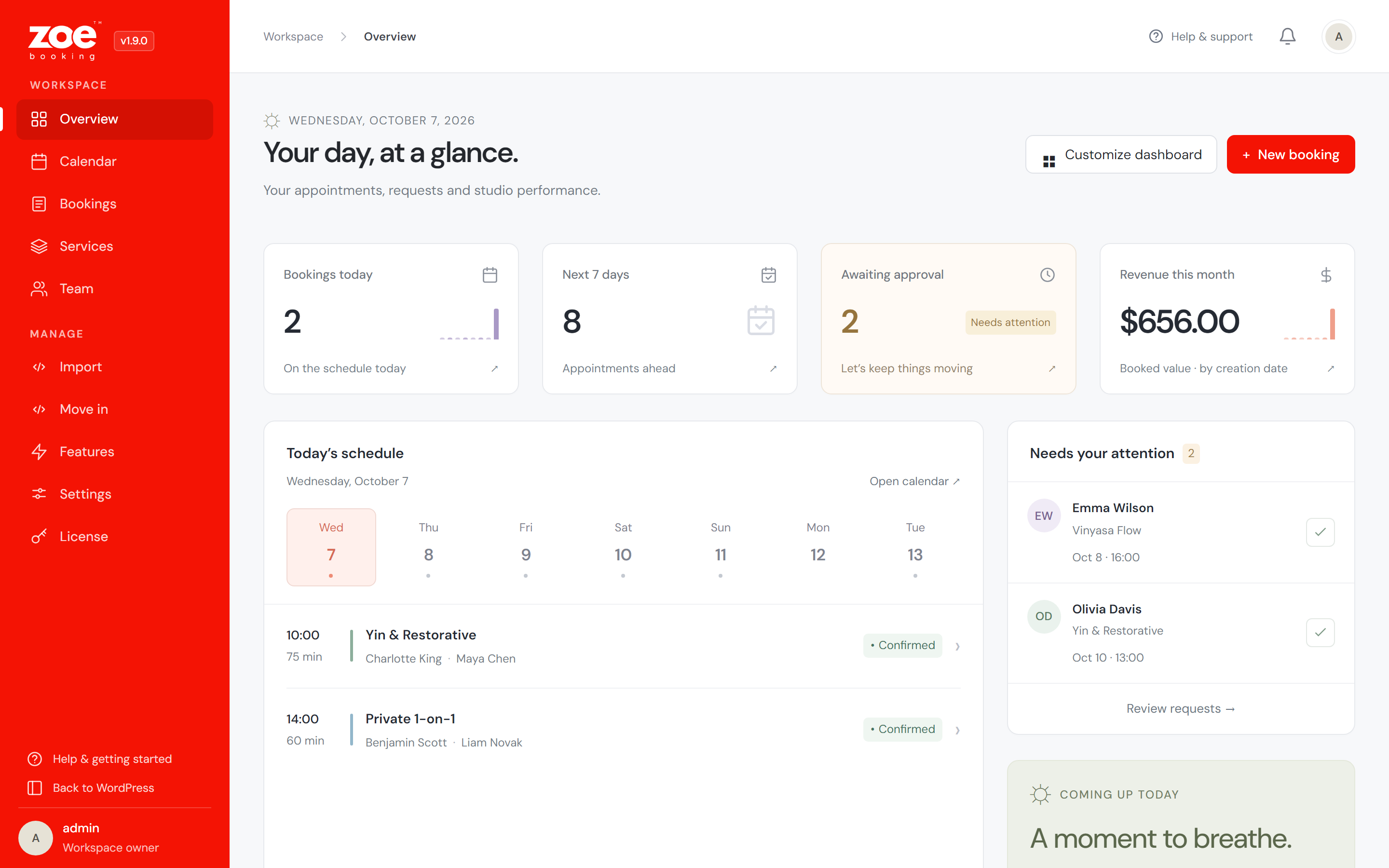
- A dashboard you arrange yourself — today’s schedule, approvals, the next appointment, and revenue and booking charts with a period picker and a data table under each.
- Emails with .ics calendar invites, automatic reminders, and a QR code customers scan to drop the appointment into their phone’s calendar.
- Built-in SMTP delivery — enter your mail provider’s server details under Settings Notifications and every email the plugin sends goes through it. No separate SMTP plugin needed.
- An optional GDPR consent checkbox on the booking form — your own text and privacy-page link, required server-side in every booking mode, with the moment of consent stored on the booking as proof.
Schedules that fit real people
- A weekly schedule per person, the services they offer, and time off as single days or whole date ranges.
- Special days — different hours on one particular date, for schedules no weekly grid fits. A special day can open a normally closed day, and a day off always wins over it, so a holiday is never reopened by accident.
- Buffers before and after a service — the room needs resetting, you need to drive there. The gap is held clear on both sides, so the next slot never starts on top of it.
- Booking rules you set once: a minimum notice (nothing inside the next N hours) and a booking window (how far ahead the calendar opens). Slots outside the rules are never shown, and a tampered request is refused server-side.
- Free slots are worked out from the schedule, the service length (plus the gaps around it) and the bookings you already have — two customers can never grab the same slot, even if they pay at the very same moment.
Staff panel (PRO add-on)
Each team member gets their own corner of the WordPress admin: a “today” strip, their own appointments with quick status changes and rescheduling, their own month calendar, their own schedule (weekly hours, days off, special days) and a My Profile page for the name and photo customers see. No settings, no payments, nobody else’s bookings. Give them a WordPress account with the “Zoe Staff” role, link it on the Staff screen — done.
You decide how much they get: Settings What staff can do switches statuses, rescheduling, managing their own hours, seeing the customer’s phone number and editing their profile — each enforced on the server, not merely hidden.
Or put the panel on your own site with [ms_staff_panel]: the same appointments and rules on a normal page with a sign-in form — handy when WooCommerce, security plugins or “hide wp-admin” tools keep staff out of the admin.
Earnings & commissions (PRO add-on)
What each person brought in and what you owe them, for any date range — appointments, revenue, commission and what you keep, with a CSV export. A percentage or fixed rate per person, with a per-service override. Revenue comes from the price stored with each booking, so later price changes never rewrite past months; cancelled and refunded bookings are excluded. Zoe reports what is owed and never moves money — splitting payments would mean running a Stripe Connect platform with identity checks for every team member, where a bank transfer already does the job.
Deposits, pay links & no-shows (PRO add-on)
Take part of the price online when the booking is made — a percentage or a fixed amount, global or per service — and collect the rest at the appointment. Reports, invoices and commissions still count the full price, and the summary, email and details sheet show “deposit due now / balance due at the appointment”. Email payment link sends the customer a secure checkout for exactly what is still owed (it works for bookings you typed in by hand too), and the same “Pay” button appears in their customer panel. Mark a booking No-show and the sheet shows how many appointments that customer has missed, the new-booking email warns you when they book again, and no-shows never count as revenue or commission.
Already using Amelia or Bookly? Move in with one click
Zoe finds them on your site and copies your services, staff and appointments across — free. “Show me what would happen” previews exactly what would be created and skipped, and your old plugin is only ever read, never changed, so you can compare the two and go back. Imported appointments arrive silently (no confirmation emails for last spring’s haircut), running it twice is safe, and working hours are deliberately not copied — every plugin shapes them differently.
SMS & WhatsApp messages (PRO add-on)
Automatic confirmations, reminders and cancellation notices by SMS or WhatsApp, through your own Twilio account and number — you pay Twilio’s list price and we add nothing on top. Write your own wording with {name}, {service}, {staff}, {date}, {time} and {site}, or use ours. Reminders follow your email reminder schedule (customers who left only a phone number get one too), numbers are tidied into international format, and a failed message never affects the booking — the reason lands in its private note.
Zoom meetings per booking (PRO add-on)
A fixed meeting link breaks down when appointments overlap or run back to back — everybody has the same URL. Connect your own Zoom account once (Server-to-Server OAuth: three values, no app review) and every booking gets its own meeting in the confirmation email and calendar invite, created in your Zoom account. Moving an appointment moves its meeting, cancelling gives it back, and each occurrence of a series gets its own. If Zoom is unreachable the booking still goes through and the failure is noted on it.
Zapier, Make & webhooks (PRO add-on)
Send every new booking, status change and reschedule to Zapier, Make, n8n or your own software the moment it happens — create a client or patient record, add a spreadsheet row, post to your team chat. Paste the “Catch Hook” (Zapier) or “Custom webhook” (Make) address, press “Send a test booking” and map the fields: name, email, phone, service, team member, location, date and time, price and status. Bookings you add in the calendar are sent too; the customer’s own note only when you switch it on. Requests are signed (HMAC-SHA256), retried once on failure and listed in Settings.
Team appointments (PRO add-on)
Some jobs take two people: a four-hands massage, a cleaning crew, a workshop with an assistant. Set People required on the service and Zoe offers only the times when enough qualified colleagues are free, then books the whole team. The form doesn’t change for customers; the appointment blocks every member’s calendar, feed and staff panel; only the lead can move or re-status it; and the commission report splits the price equally, each at their own rate.
Feature switchboard
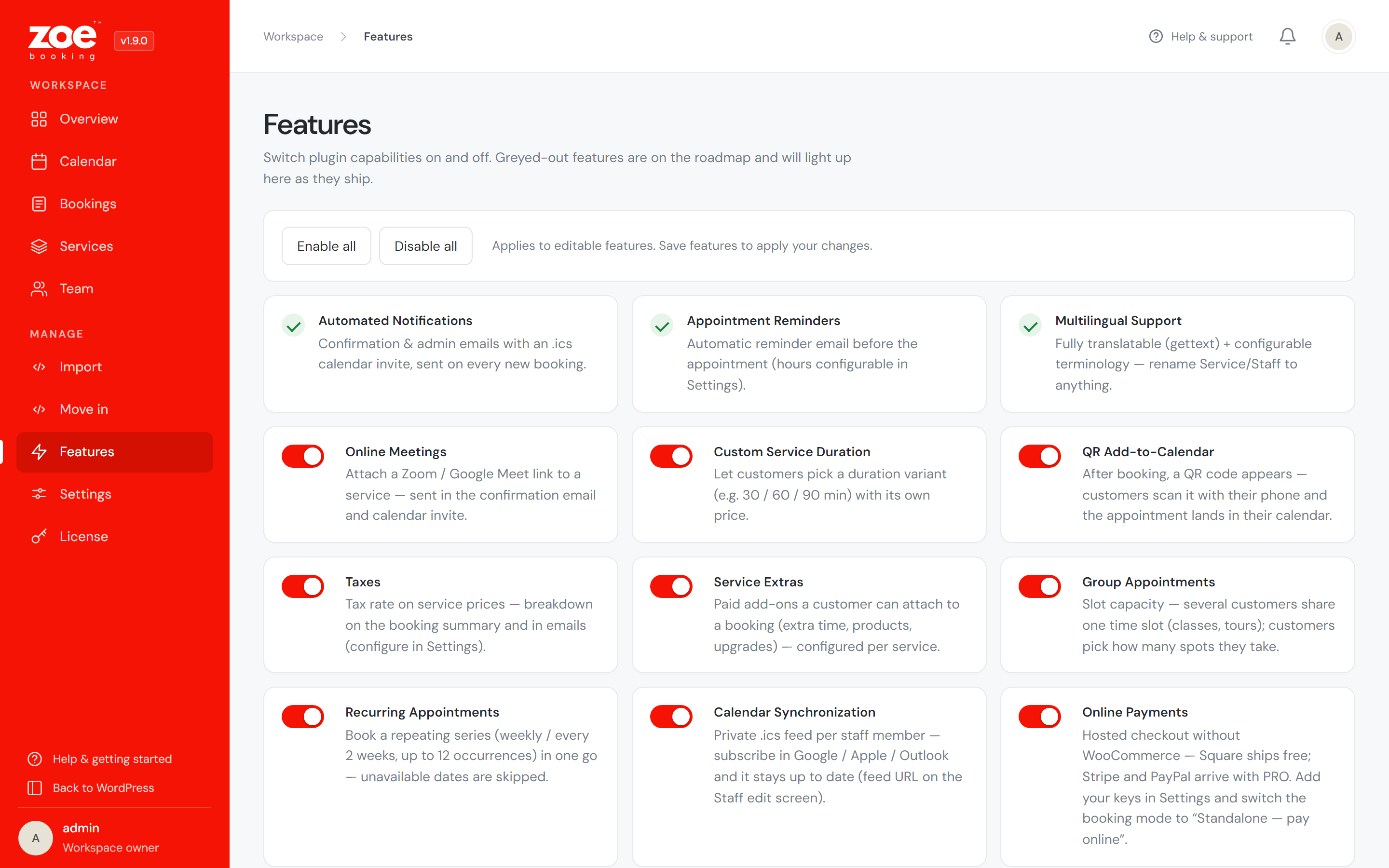
Every capability has an on/off switch under Zoe Booking Features, so the plugin stays exactly as light as you need.
Events & tickets (PRO add-on)
Events (workshops, openings, concerts) with a ticket pool, image and description — sold through any booking mode and displayed with the Events widget or [ms_events] shortcode in list, grid or standard layouts. An event can run on one date or many — customers choose their date, every date sells its own seats, and events are not tied to anyone’s working hours.
Customer panel
A front-end account area with passwordless magic-link sign-in: customers see their appointments and tickets, cancel online up to a deadline you set (e.g. 48 hours before the appointment — payments are never refunded automatically), download invoices, edit their details — and exercise their GDPR rights (export or permanently delete their data) themselves. [ms_customer_panel] or the Elementor widget.
Free vs Premium
The free plugin is complete on its own: everything above that is not marked PRO — unlimited services and staff, the full booking form and calendar, booking rules, Square payments, emails and reminders, group and recurring appointments, the customer panel and full translations.
Zoe Booking PRO (a separate add-on, not included in this plugin) adds: the design-preset gallery and saving your own, the staff panel, the earnings & commissions report, deposits, pay-by-link balance collection, no-show tracking, Stripe & PayPal payments, WooCommerce checkout, discount coupons, waiting lists, multiple locations, invoices, refunds, events & tickets, SMS & WhatsApp messages, Zoom meetings, team appointments and Zapier & Make webhooks.
External services
Zoe Booking stores all data in your WordPress database and contacts an external service only when you switch on the matching feature and enter your own keys:
- Square (connect.squareup.com) — payment links, order checks and refunds. Sends: amount, currency, item name, buyer email. Terms, Privacy.
- Stripe (api.stripe.com, PRO) — checkout sessions, payment checks and refunds. Sends: amount, currency, item name, customer email. Terms, Privacy.
- PayPal (api-m.paypal.com, PRO) — orders, captures and refunds. Sends: amount, currency, item name. Terms, Privacy.
- Twilio (api.twilio.com, PRO) — one text message per enabled event. Sends: the recipient and sender numbers and the message text (by default: customer name, service, appointment date and time, site name). Terms, Privacy.
- Zoom (zoom.us, api.zoom.us, PRO) — an access token, then creating, updating and deleting meetings in your own Zoom account. Sends: the appointment title (service and customer name), start time, duration and timezone — no email or payment details. Terms, Privacy.
- Webhook addresses you enter (e.g. Zapier, Make, n8n; PRO) — one signed JSON request per enabled event. Sends: booking id, status, service, team member, location, date, time, price, amount paid and the customer’s name, email and phone (the note only if you enable it). The receiving service, chosen by you, applies its own terms.
- zoebooking.com (our licensing service) — only for the optional PRO licence: activating or re-checking a key sends the key and your site’s hostname, and the optional “Install PRO now” button downloads the package you bought (the request carries only your key). Nothing is sent without a key or that click; the “Get PRO” page only links to our website. Terms, Privacy.
WhatsApp links are plain wa.me links — nothing is sent until someone taps one. The QR code renderer and the flag font ship inside the plugin; no third-party script is loaded.
تصوير

بلاڪس
واحد: هي پلگ ان 1 بلاڪ مهيا ڪري ٿو.
- Zoe Booking Form
انسٽاليشن
- Upload the
zoebookingfolder to/wp-content/plugins/, or install it from the Plugins screen. - Activate the plugin — a Zoe Booking menu with a welcome dashboard appears.
- Add a Service and a Staff member (with a weekly schedule).
- Put the form on a page: the Zoe Booking Elementor widget, the Gutenberg block or
[ms_booking]. - Pick your booking mode under Zoe Booking Settings and flip on any features you need.
FAQ
-
Do I need WooCommerce?
-
No. Standalone mode works on its own, and online payments (Stripe / PayPal / Square) work without WooCommerce too. Selling bookings through the WooCommerce cart and checkout is an optional mode available in Zoe Booking PRO.
-
Does it work with Elementor?
-
Yes — Zoe Booking ships a dedicated Elementor widget with full Style controls: layouts, design skins, colours, typography and spacing are all configurable per widget, live in the editor. No Elementor? The Gutenberg block and the
[ms_booking]shortcode render the exact same form. -
How do online payments stay safe?
-
The reservation is only written after the gateway confirms the payment server-side. Availability is re-checked at that moment — if the slot was taken while the customer was paying, the charge is refunded automatically.
-
Can I make the phone number required?
-
Yes — Zoe Booking Settings Localisation & wording Phone field “Phone number on the form”: Optional (the default), Required or Hidden. Required is checked on the server as well, so no booking gets through without a number; Hidden removes the field and no number is stored.
-
Can customers manage their own bookings?
-
Yes — enable the Customer Panel feature. Customers sign in with a magic email link (no passwords, no WordPress accounts), see their appointments and tickets, cancel, download invoices and edit or delete their personal data.
-
Can my team see their own bookings without seeing everything else?
-
Yes — that is the Staff panel (PRO). Give the person a WordPress account with the “Zoe Staff” role and link it on the Staff screen. They then see only their own appointments and calendar, and manage their own hours, days off and special days. Settings, payments, revenue and everyone else’s bookings stay out of reach.
-
What if someone works different hours on one particular date?
-
Add a special day on the Staff screen: a date with its own start and end time. It replaces the weekly hours for that date and can also open a day that is normally closed. Days off always win, so a holiday cannot be reopened by mistake.
-
Yes — set a group capacity on the service. Slots show the remaining spots and prices are per person.
-
Are reminders sent automatically?
-
Yes, when enabled in Settings. They run on WordPress cron, so they fire on site traffic; for precise timing use a real system cron.
-
My emails don’t arrive — do I need an SMTP plugin?
-
No. Zoe has SMTP delivery built in: under Settings Notifications, switch it on and enter the host, port, username and password from your email provider. Every email the plugin sends then goes through that account. (On a localhost test site, a mail catcher like MailHog is the easiest way to see outgoing mail.)
-
Is it translation-ready?
-
Fully — gettext throughout (text domain
zoebooking), and it ships with complete Dutch, French, German, Italian, Polish and Spanish translations out of the box. The Terminology settings additionally allow quick renames (Service Class…) without touching translation files. -
Does uninstalling remove my data?
-
Options are cleaned up. Bookings, services, staff and events are only deleted if you tick “Delete all data on uninstall” in Settings first.
جائزا

تعاون ڪندڙ & ڊولپرز
“Appointment Booking Calendar & Scheduling – Zoe Booking” اوپن سورس سافٽ ويئر آهي. ھيٺين ماڻھن ھن پلگ ان ۾ حصو ورتو آھي.
تعاون ڪندڙ
واحد: “Appointment Booking Calendar & Scheduling – Zoe Booking” 1 لوڪل ۾ ترجمو ڪيو ويو آهي. ترجمي ڪندڙن جي مهرباني سندن تعاون لاءِ.
ترجمو ڪريو “Appointment Booking Calendar & Scheduling – Zoe Booking” توهان جي ٻولي ۾.
ڊولپمينٽ ۾ دلچسپي؟
ڪوڊ براؤز ڪريو، چيڪ ڪريو SVN مخزن، يا رڪنيت حاصل ڪريو ڊولپمينٽ لاگ پاران RSS.
لاگ تبدیل ڪريو
1.9.3
- New: phone number on the booking form — Optional, Required or Hidden (Settings Localisation & wording Phone field). Required is checked on the server too, so no booking gets through without a number — useful when you call customers or send text reminders; Hidden removes the field and no number is stored. The summary on the last step no longer shows an empty “Phone:” line.
- Fixed: a service category with “&” in its name (e.g. “Smooth & Relax”) showed up in the booking form’s service picker as “Smooth & Relax” — on the category tabs and on the picker once a service was chosen, including when the form opens from a “Book” button with the service already picked. It now reads “Smooth & Relax” everywhere.
- Improved: the booking details panel — the Invoice opens in its own tab (inside the panel it replaced the booking, with no way back), the unexplained icon next to the close button is gone (a link to open the page now appears only if the panel cannot show it), the close button stays readable over scrolled content, and the section arrows turn without spinning their background.
1.9.2
- New (PRO): Zapier & Make (Webhooks) — every new booking, status change and reschedule is sent the moment it happens to Zapier (“Catch Hook”), Make (“Custom webhook”), n8n or your own software, so a client or patient record, a spreadsheet row or a team-chat message can be created automatically. Bookings you add yourself in the calendar are sent too. Up to five addresses, a “Send a test booking” button so the Zap learns the fields, a list of recent deliveries, a signed request (HMAC-SHA256) and one automatic retry. The customer’s own note is only included when you switch it on.
- Improved: appointments that turn “completed” automatically after they end now count as a status change too, so a follow-up (a review request, aftercare tips) can start from it. Developers: new
ms_booking_status_changedaction ($booking_id,$new_status,$old_status).
1.9.1
- New: Booking rules Cancelling online — choose how late customers may still cancel in the customer panel, in hours. Set it to 48 and the Cancel button disappears 48 hours before the appointment: until then the customer sees “You can cancel online until …”, afterwards a note asking them to contact you. The rule is checked on the server too, and cancelling online still never refunds a payment on its own — refunds stay your decision.
- Fixed: a same-day appointment could be cancelled online even after it had started.
- Fixed: the customer panel showed “Cancelled” in English after a cancellation, whatever the site language.
- Improved: booking-form accessibility — every label is tied to its field (a tap on the label focuses the field, and screen readers announce it), the person, service and location pickers are named by their labels, name, email and phone can be filled by the browser’s autofill, and the required fields are marked as such. When a required field is left empty, it is now highlighted instead of only showing a general message.
1.9.0
- New: a redesigned workspace. Every Zoe Booking screen now opens in one focused workspace — a red sidebar with the logo, a clean top bar and no second WordPress menu next to it. Only the presentation changed: every form, permission check, booking action and setting underneath is the same one you had, and nothing in your data or settings is converted.
- New: a dashboard you arrange yourself. “Your day at a glance” brings today’s schedule, the next seven days, bookings awaiting approval (approve them right there), the next appointment, a revenue chart and your most-loved services. “Customize dashboard” shows, hides, reorders (drag or buttons) and resizes every panel; the layout is saved per administrator and “Restore default layout” brings the original back.
- New: charts with real axes — area charts with a period picker, a read-out on hover and on the keyboard, and a “View daily data” table under each one, so the figures are there without a mouse.
- New: week calendar with an hour axis — appointments as colour-coded blocks, overlapping ones side by side; day and month views and the staff and service filters are still there. “New booking” is a two-step panel: time and service first, then the customer.
- New: booking details in a side panel — client, service, time, notes and the actions you need (approve, reschedule, cancel) open beside the list instead of on a separate page. The additional details, price breakdown and documents fold away until you need them.
- New: a calmer bookings list. Status tabs say how many bookings each one holds before you click. One toolbar: search on Enter, the team member applies the moment you pick one, and the rest of the filters sit behind a single “Filters” button with a count of what is set. Every active filter shows as a chip you can remove on its own, and bulk actions appear in a bar only once you tick a booking. Each row’s actions — details, private note, invoice, delete — stay visible in a column pinned to the right edge, so they never scroll out of reach.
- New: Table or Cards on every data list. Switch any table to a grid of compact cards; the choice is remembered per screen in your browser.
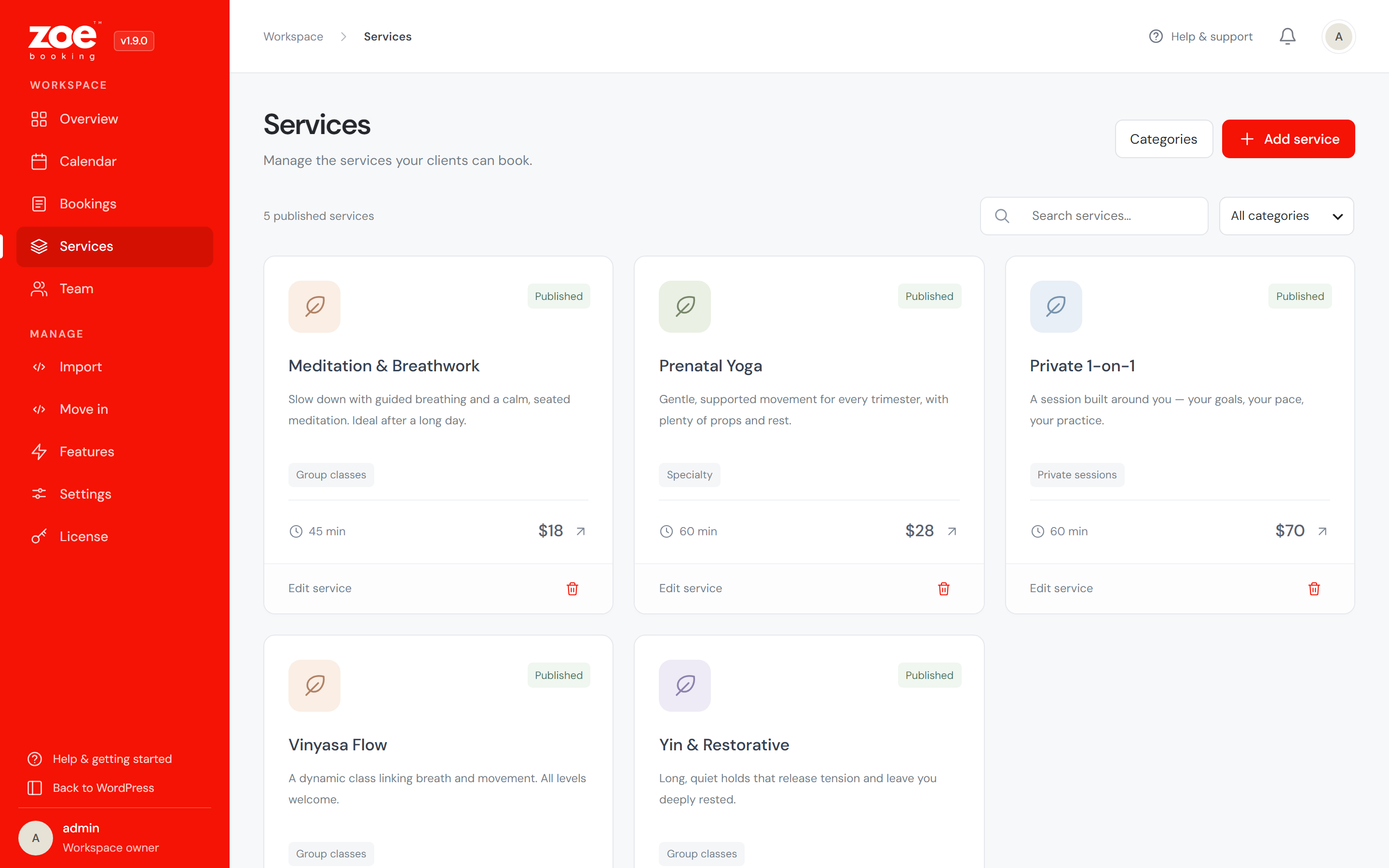
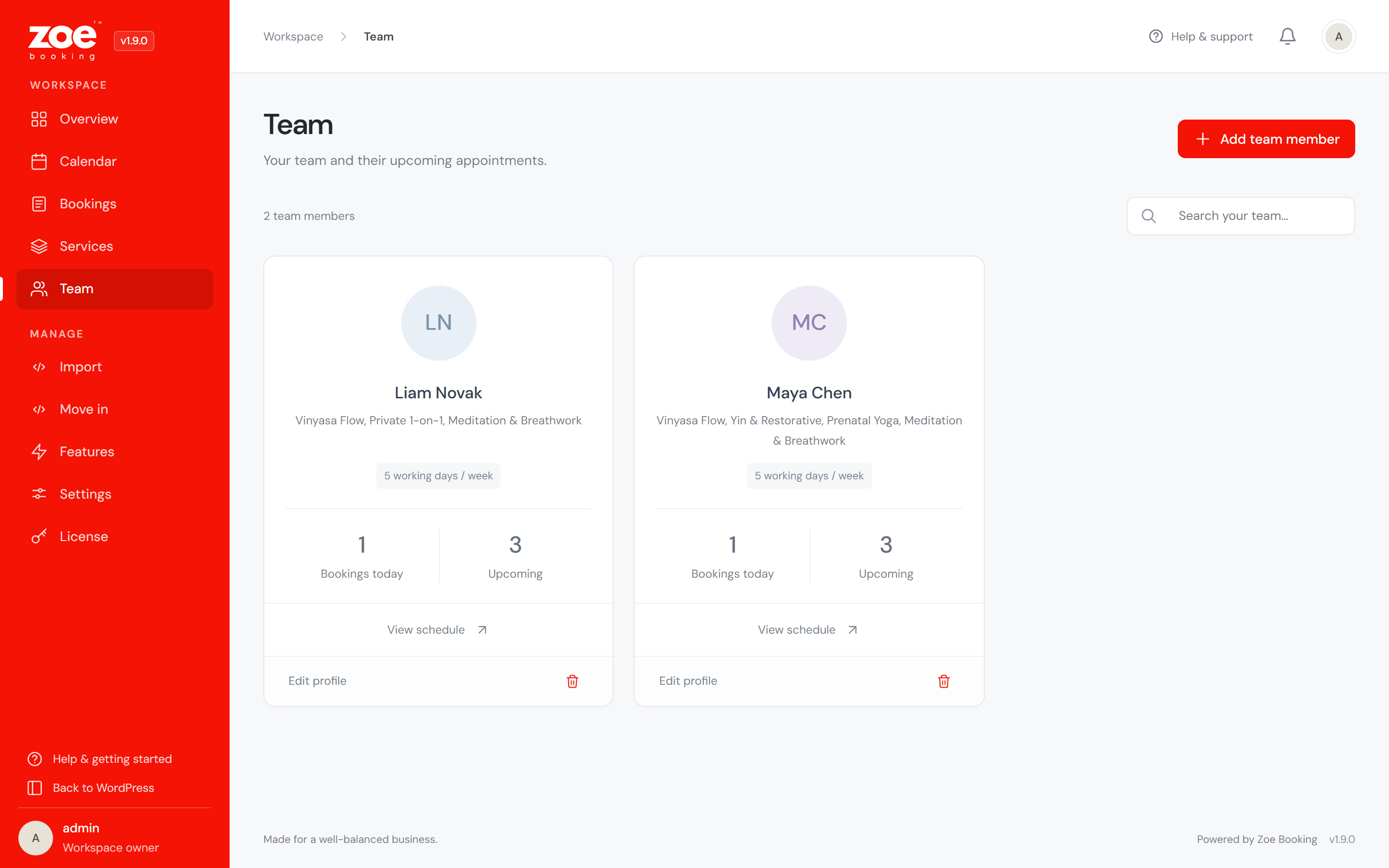
- New: Services and Team appear as cards with search and filters, and their edit forms open in a side panel.
- New: the Features screen has “Enable all” and “Disable all”.
- New (PRO): the staff panel has the same new look — in wp-admin and in the
[ms_staff_panel]front end — with Table/Cards for the team member’s bookings. - New (PRO): four more design presets — Zoe Studio, Sage Retreat, Coastal and Evening Plum.
- Improved (PRO): the invoice preview is redesigned, and invoices and booking details print on a proper A4 sheet with 15 mm margins and no interface around them.
- Fixed: the
[ms_booking]shortcode came out unstyled on block themes (Twenty Twenty-Four, Twenty Twenty-Five and other full-site-editing themes). Those themes render the page content before WordPress registers the form’s stylesheet, so the form was printed as plain, unstyled HTML. The form now registers its own assets when it is rendered first. - Fixed: on phones, the Process layout drew its step icons in the badge colours — colours that layout never shows on desktop — so on a dark sidebar they came out light-on-light and disappeared. They now use the same colours as the numbered circles you set up for desktop. In every layout, a step icon that would be unreadable on its badge now gets a readable colour automatically; the built-in presets are not affected.
- Fixed: collapsing the sidebar of the Process layout squashed the active step’s number circle into an oval.
- Fixed: the Top layout with a sidebar background now has the same space below the steps as above them, so the step names no longer sit on its lower edge.
- Fixed: the Amount column and the booking details showed “—” for bookings without a stored price snapshot (imported, sample or older bookings) while the invoice and the CSV export showed the price. All of them now agree.
- Fixed: the Save / Cancel bar under the Events, Locations and Coupons forms stopped short of the card’s right edge on WordPress 7.
- Improved: event prices in the Events list show the currency symbol, and the dashboard counters show plain numbers.
1.8.1
- Fixed: moving in from Amelia or Bookly turned waiting lists into real appointments. Both plugins keep waiting-list requests in the same table as bookings, marked with their own status — “waiting” in Amelia, “waitlisted” in Bookly — and neither holds a time slot for them. Zoe did not recognise either, so it imported them as confirmed appointments, which DO hold a slot: a calendar could arrive from the migration with times blocked that nobody had ever booked. Those entries are now left where they belong and reported in the summary, so you can see what was passed over.
- Fixed: an unrecognised status from the other plugin no longer becomes a confirmed appointment. If either plugin adds a status we have not seen, the booking is imported as Pending and listed in the summary for you to check, rather than quietly taking a slot as though it were confirmed.
- The column and table names the move-in wizard looks for have been checked against both plugins’ own installers — all 5 tables and 28 fields for Amelia, all 6 tables and 35 fields for Bookly.
1.8.0
- New (PRO): Deposits — take part of the price online when the booking is made and collect the rest at the appointment. A percentage or a fixed amount, set globally with a per-service override. The appointment never changes its price: the dashboard, the commission report and invoices keep counting it at full value, while the booking summary, the confirmation email and the printed sheet all show “Deposit due now” and “Balance due at the appointment” lines. A deposit of 100% simply means paying in full, and a fixed deposit larger than the price falls back to charging the whole thing — turning the dial to either end never breaks a checkout.
- New (PRO): Pay by link — one click on a booking’s Details page emails the customer a secure link that opens a checkout for exactly what their booking still owes: the balance a deposit left behind, or the whole price of a booking you typed in by hand. The link carries no personal data, survives until it is paid, and after payment turns into a small receipt page. Customers with something outstanding also get a “Pay” button in their customer panel, so a balance can settle itself without you lifting a finger. Refunding a booking that was paid in two charges (deposit + balance) refunds both.
- New (PRO): No-show tracking — a “No-show” status for the appointments nobody turned up to, one click on the status pill (staff can mark their own unpaid ones from the staff panel). The booking sheet then shows that customer’s record — “missed 2 of 9 past appointments” — and the new-booking email warns you when a repeat offender books again, at the exact moment you could still ask for a deposit. No-shows never count as revenue on the dashboard and never earn staff commission; marking one sends the customer nothing.
- New: Move in from Amelia or Bookly — a new screen that finds either plugin on your site and copies your services, staff and appointments into Zoe in one click. Free on purpose: retyping years of appointments is the thing that stops people trying a different booking plugin at all. Preview before committing; your old plugin is read-only throughout and left exactly as it was, so you can compare the two and change your mind. Imported appointments are silent — nobody is emailed about a booking they made months ago — and re-running is safe, because anything already moved in is recognised and skipped, letting a large calendar arrive over several passes. The importer reads the other plugin’s real column names rather than assuming them, so a version that differs slightly degrades to a missing field instead of a broken import.
- New (PRO): SMS & WhatsApp messages — automatic confirmations, reminders and cancellation notices sent as text messages, by SMS or WhatsApp. They go through your own Twilio account, from your own number, so you pay Twilio’s list price with nothing added on top — no credits to buy from us. Three editable messages with placeholders for the customer, service, staff member, date, time and site name. Reminders use the timing you already set for reminder emails, and a customer who left only a phone number now gets a reminder as well — previously reminders needed an email address. Numbers are normalised into international format however the customer typed them, and a message that cannot be sent never affects the booking: the reason is recorded on it.
- New (PRO): Zoom meetings per booking — connect your own Zoom account once and every booking gets a real meeting of its own, sent in the confirmation email and the calendar invite, instead of one link shared by every customer. Set it per service: no meeting, one fixed link, or a new meeting each time. Moving an appointment moves its meeting, cancelling gives it back, and each occurrence of a recurring series gets its own. Connecting uses a Server-to-Server OAuth app you create inside your own Zoom account — three values to copy, no app review, no redirect URL — and a “Test connection” button that names the account you reached. If Zoom is unreachable the booking still goes through and the reason is recorded on it: a customer is worth more than a meeting link.
- New (PRO): Team appointments — several people on one appointment, for the jobs that genuinely take two: a four-hands massage, a cleaning crew, a workshop with an assistant. Set “People required” on the service; customers still pick one person and a time exactly as before, but a slot is only offered when enough colleagues who perform that service are also free, and Zoe books the whole team. Everyone on it is properly busy — it blocks each member’s calendar, feed and staff panel — while only the lead can move or re-status it, and moving it keeps the same crew. The commission report splits the price equally between them, each at their own rate, so the total still equals what the appointment was worth.
- New (PRO): the staff panel on the front end — put
[ms_staff_panel]on a page and your team reaches their appointments, calendar, availability and profile without ever opening the WordPress admin. The same data, the same permissions and the same accounts; the four screens become tabs, and anyone not signed in gets a sign-in form that returns them to the panel rather than the dashboard. Worth having because the WordPress admin is where WooCommerce, security plugins, two-factor gates and “hide wp-admin” tools all get in your team’s way. The admin screens are untouched for the sites they already suit. - New: the bookings table now records how much money actually arrived for each booking separately from its price — the details sheet shows “Paid online” and “Balance due” whenever they differ.
- Fixed: the dashboard charts under-drew your busy days. The line was smoothed in a way that treated each day as a hint rather than a value, so it never quite reached its own peaks — a spike of 19 bookings was drawn about a fifth of the chart below where it belonged, and the dot you get on hover floated above the line it was supposed to mark. The line now passes exactly through every day, and can no longer bulge above the busiest one or dip below zero.
- Fixed: the popup ignored your Layout & skin. Opening the booking form in a popup moved it to the end of the page so a sticky header could not trap it — but the layout, skin and button styling live on the element around the form, and that element stayed behind. The popup therefore always opened in the default sidebar layout, whatever you had chosen, and no amount of clearing caches helped because nothing was cached wrong. The styling now travels with the popup. This affected every popup: the shortcode, the block, the Elementor widget and the one opened from a Parallax Slider button.
- Fixed: a service’s buffer before is now recorded on each booking, so the gap in FRONT of an appointment is protected the way the gap after it already was. Until now nothing stopped the next customer from booking into somebody’s setup or travel time — the same class of bug as the buffer-after fix in 1.7.0, at the other end of the appointment. If you use buffers before a service, expect slightly fewer slots offered: that is the setting finally doing what it says. Bookings made before this update keep behaving exactly as they did.
- Fixed: refunding one appointment of a recurring series paid with a single charge could hand back every charge while cancelling only that one appointment, if its balance had been settled separately. The whole series is now cancelled together, and each row keeps a record of what was actually charged to it.
- Fixed: the schema upgrade now also runs on the front end. A background auto-update could otherwise land a new version without anyone opening wp-admin, and a booking taken before the new columns existed failed to save — after the customer had paid.
- Fixed: the PRO pricing screen showed a hard-coded “from $4.08/mo” with no indication it was the annual price per month. It is now derived from the annual price and labelled “billed annually”, so the headline can never contradict the plans listed under it.
- Docs: the FAQ no longer tells you to install an SMTP plugin (Zoe has SMTP built in), the Services table documents both buffers plus the commission and deposit overrides, the GDPR section covers the consent checkbox, and the previously unwritten limits are stated — minimum notice up to 2160 hours, booking window up to 3650 days, 30 saved design presets, 2000-character private notes, and the 180-day horizon of the “earliest available” search.
- Improved: booking status labels are now translatable everywhere (they were shown as raw capitalised English in a few places).
Older releases (1.7.0 and earlier) are listed in changelog.txt.